
The fastest way to improve photo description is to stop listing objects and start describing one connected scene.
This guide shows how to select a photo prompt in Prepingo, use the visible 60-second timer and word counter, submit with or without AI, and convert feedback into a better second description.
Try Write About the Photo now
Open the real practice bank, choose a difficulty, complete one attempt, and use the result to decide exactly what to practise next.
Open Write About the Photo practice →How to find this question in Prepingo
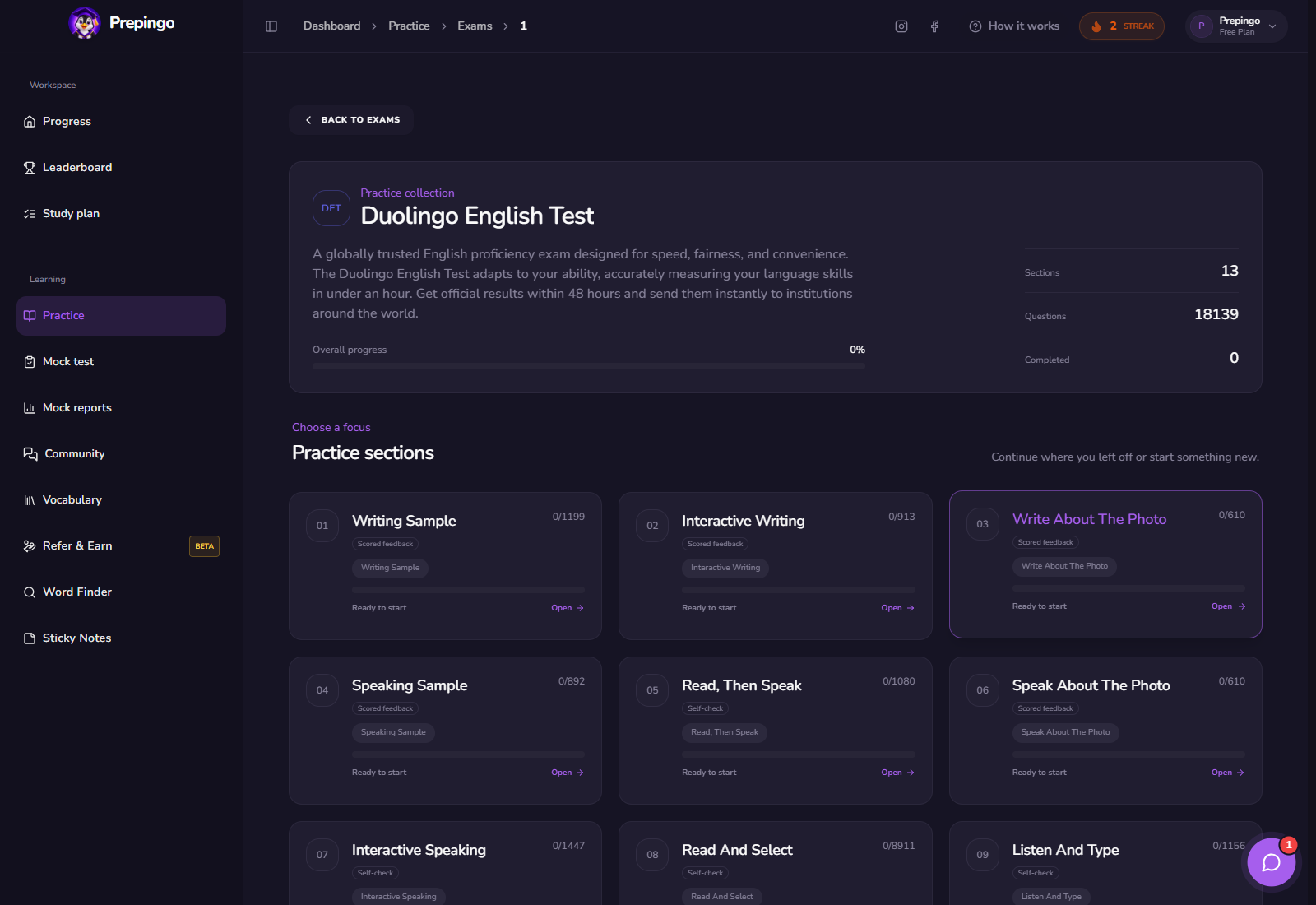
- Sign in to Prepingo and select Practice in the left navigation.
- Open the Duolingo English Test exam and find Write About the Photo.
- Choose a question from the section page. You can filter the question bank and return later to practise another item.
- Read the task instructions before starting the timer. Use Attempt History after submission to compare your work over time.
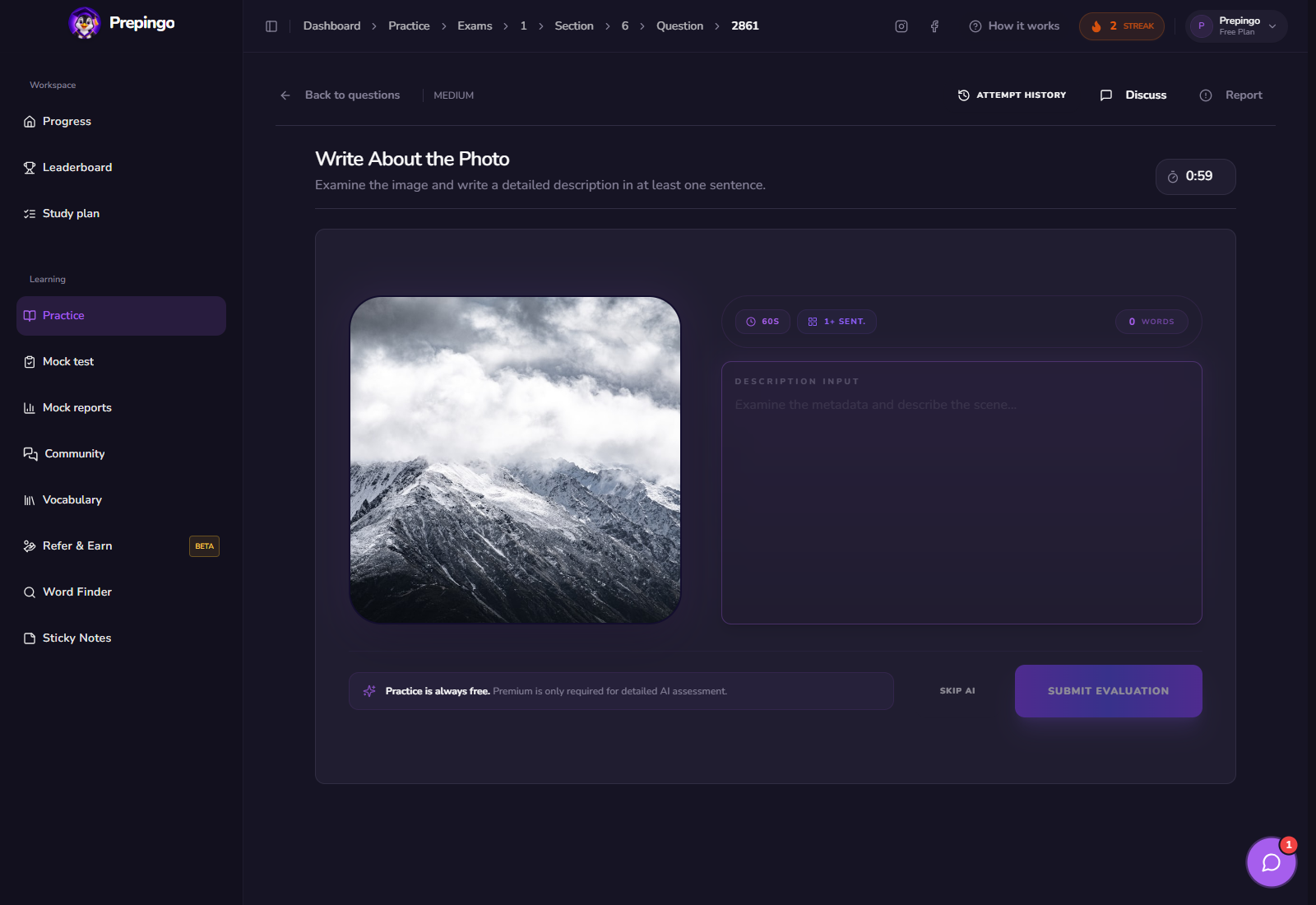
What the Write About the Photo workspace looks like
The image is displayed prominently beside the description area. The timer, sentence requirement, and word count remain visible so you can balance observation with accurate writing.
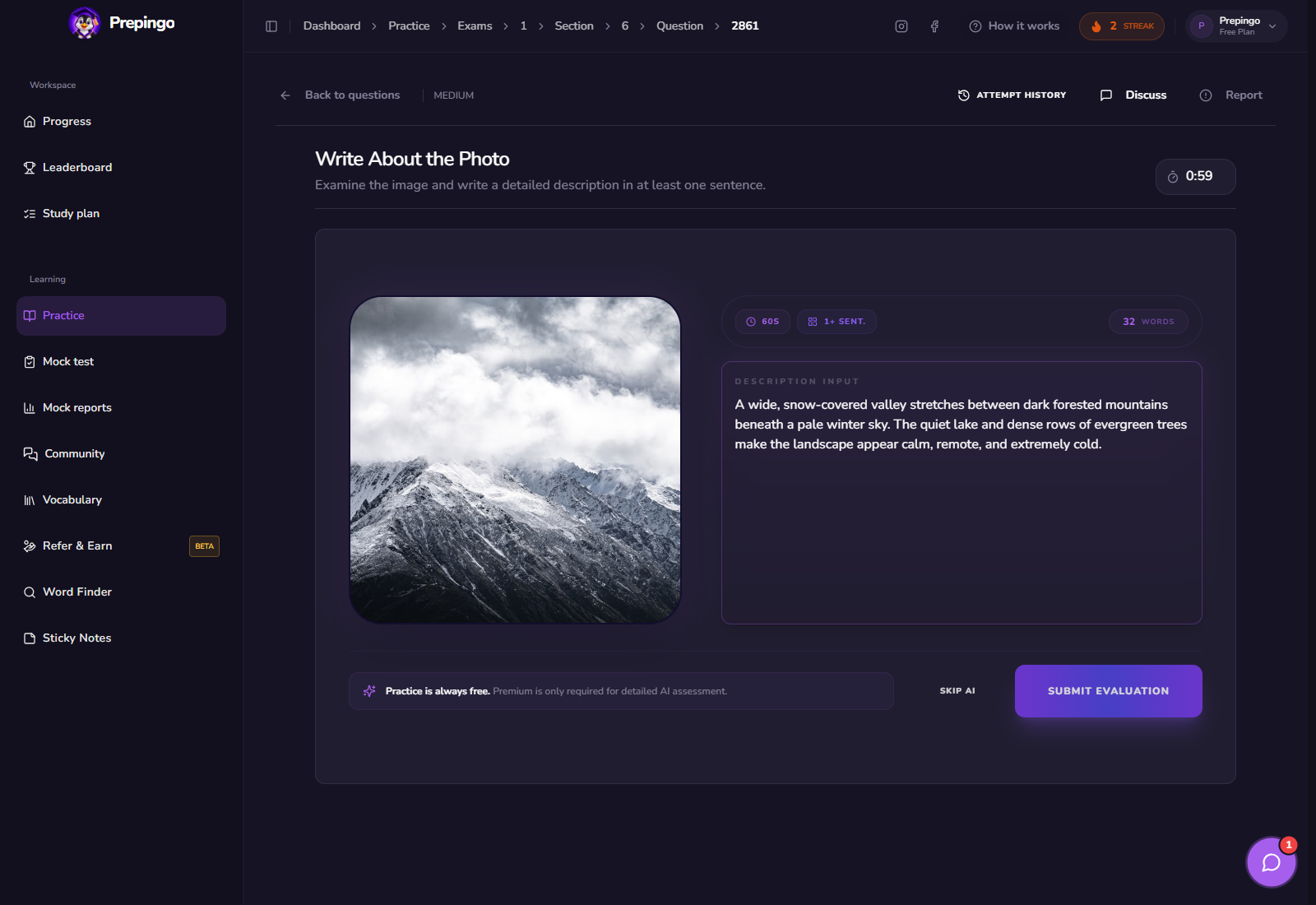
Step-by-step: complete one useful attempt
- Spend a few seconds identifying the setting, main subject, and most important action.
- Begin with a complete overview sentence that would make sense to someone who cannot see the image.
- Add two or three accurate details about position, appearance, or atmosphere.
- Use cautious language such as “appears to” when an interpretation is uncertain.
- Submit with Skip AI for repetition or Submit Evaluation for diagnostic feedback.
See the answer stage before submitting
These screens show what the learner actually enters or records. Use them to understand the natural order of the task before you practise under time pressure.
The strategy to practise—not a memorized trick
Accuracy is more valuable than an imaginative story. Build from the whole scene toward useful details.
- Use present continuous for visible actions and simple present for stable features.
- Connect objects spatially: in the foreground, behind, beside, or across from.
- Vary sentence structure only when accuracy remains controlled.
- Describe relationships between details instead of producing a disconnected inventory.
Describe what the image supports; do not invent names, motives, or events you cannot see.
How scoring and feedback work in Prepingo
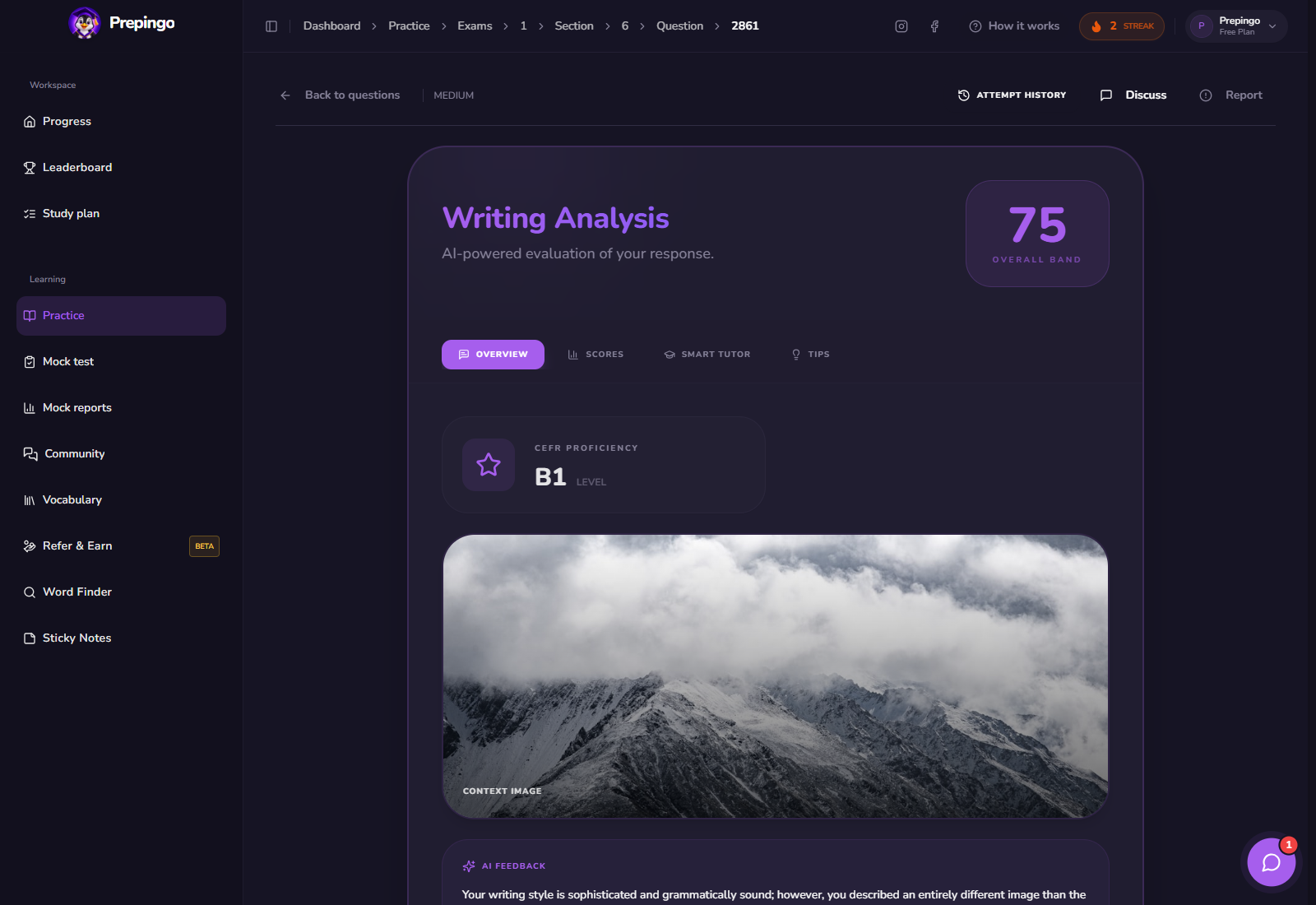
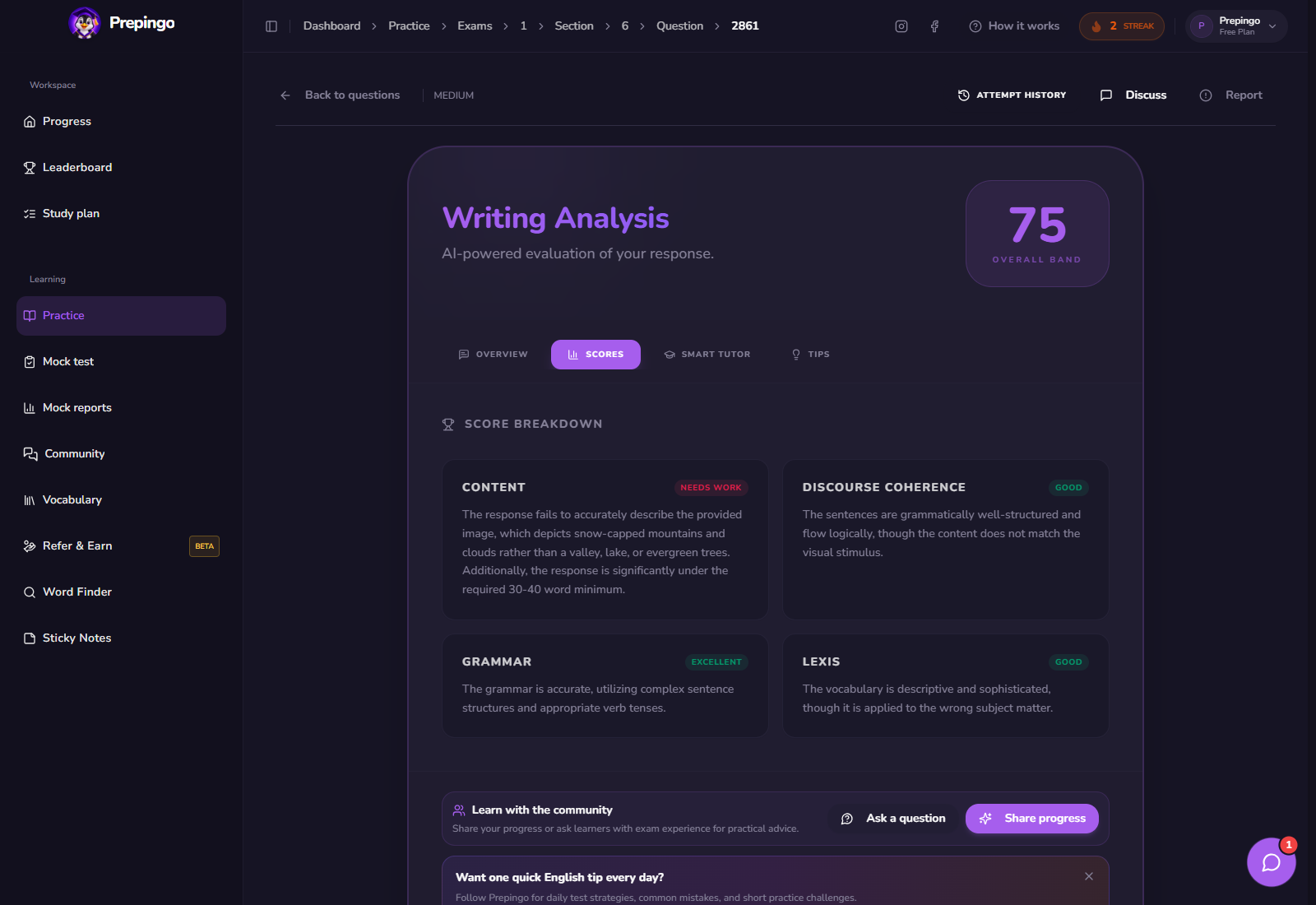
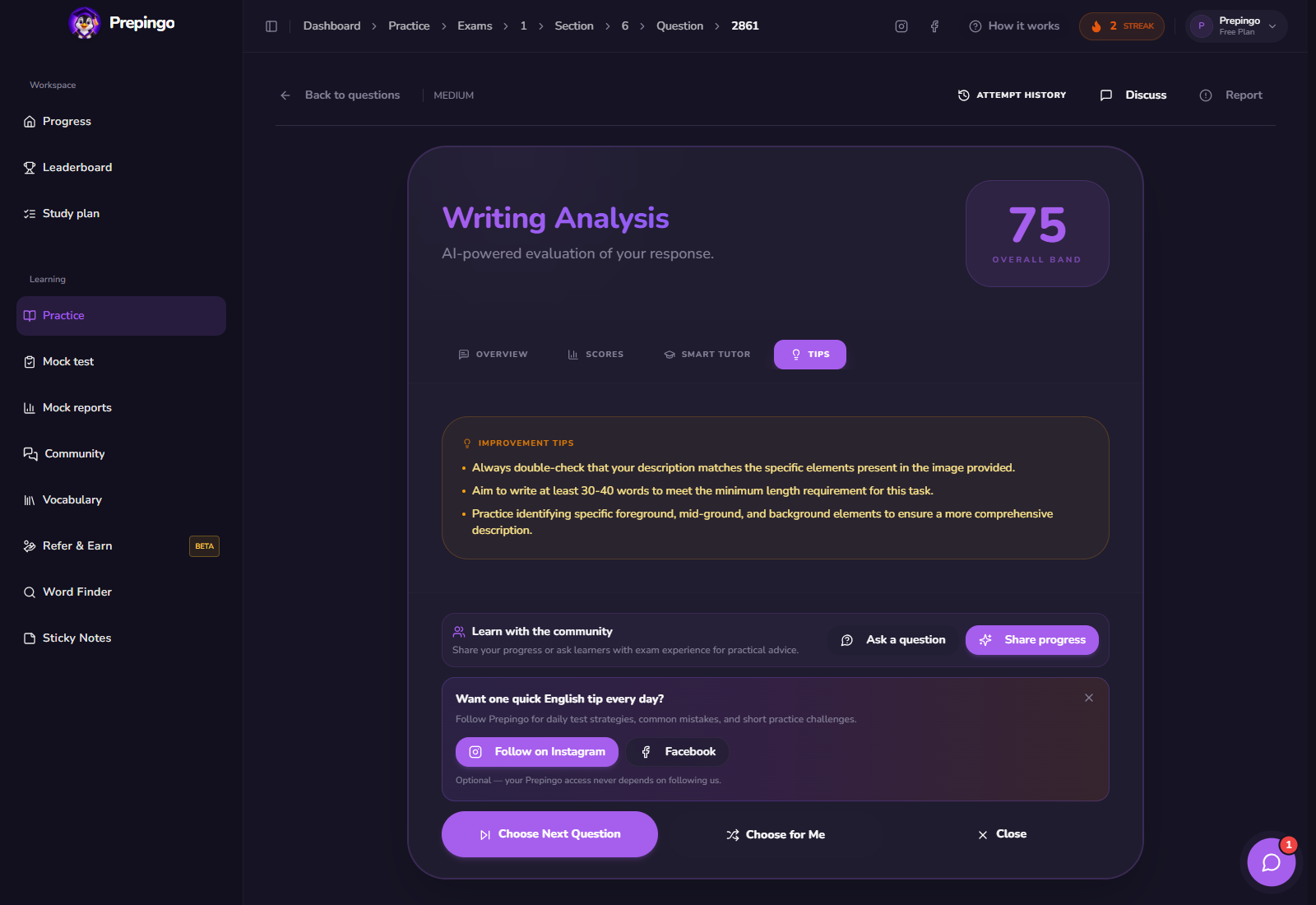
AI evaluation is useful for checking relevance, sentence control, vocabulary, and descriptive detail. Read the written recommendation, then describe the same photo again without copying the first answer.
Use Attempt History to prove you are improving
One score is only a snapshot. Open Attempt History above the question to review previous answers, scores, and feedback. Compare the same error category across several attempts: spelling, response development, vocabulary range, pronunciation, comprehension, or time management. Your target is not simply “more questions”; it is fewer repeated mistakes.
Common mistakes to eliminate
- Writing fragments instead of complete sentences.
- Inventing a long backstory unsupported by the photo.
- Repeating “there is” for every detail.
- Ignoring spelling because the response is short.
Your next 15-minute practice session
- Describe one image in 60 seconds.
- Underline mentally the setting, action, and two details in your answer.
- Use the feedback to rewrite the response in 45 seconds.
- Compare whether the second version is clearer rather than merely longer.
Format note: Prepingo is an independent practice platform and is not endorsed by Duolingo. DET formats can change. Use the official DET readiness resources for current certified-test rules, then use Prepingo to build familiarity, repeat targeted skills, and obtain practice feedback.
Turn this guide into an actual attempt
Reading a strategy feels productive. Completing one timed question and reviewing the evidence is what changes your performance.
Practise Write About the Photo on Prepingo →